Resident Portal Instructions
How to Use the Resident Portal
Payment Options
We accept ACH payments from:
- Personal Checking
- Personal Savings
- Business Checking
- Business Savings
Instructions
For residents looking to pay their rent online, please follow the instructions below.
- Click the Resident Portal button or follow this link.
- Enter your address, and re-enter it to confirm.
- Complete the CAPTCHA and click “Payment”.
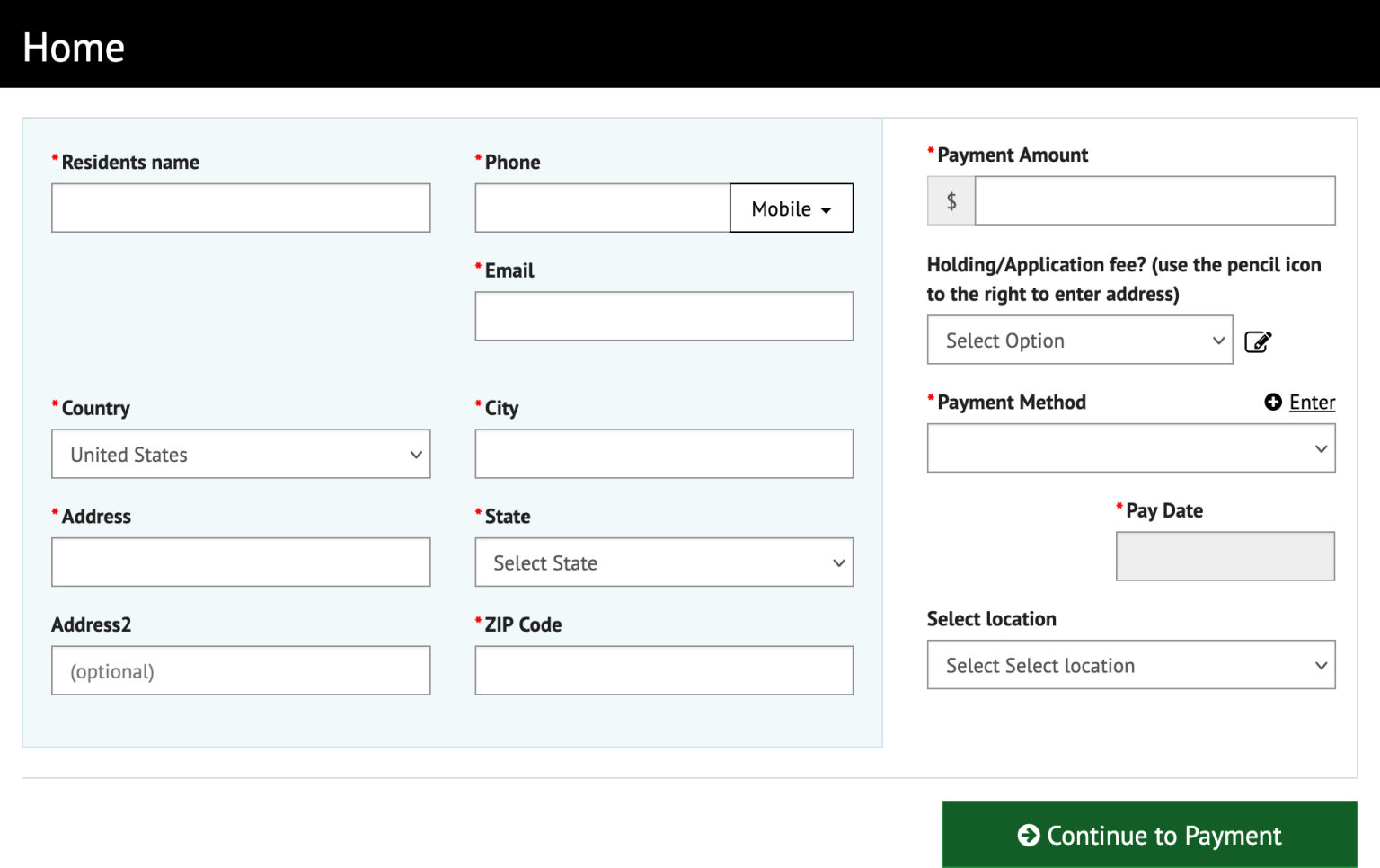
- Enter your name, phone number, email address, and home address in the first section.
- Enter your rent, security deposit, or application fee amount under “Payment Amount”.
- Click the “Enter” link to the right of “Payment Method” to bring up the “Enter Payment Method” pop-up.
If you are paying a security deposit or application fee,
select "Yes" under this dropdown and enter the address.
Click "Enter" to add bank details, not the dropdown.
This field is required.
- Select your Account Type and Banking Type.
- Enter your name, your routing number, account number, and confirm your account number.
- Select “Agree and Enter Account”.
- Click the “Enter Account” button to return to the previous screen.
- Select your address location from the dropdown.
- Click “Continue to Payment”.
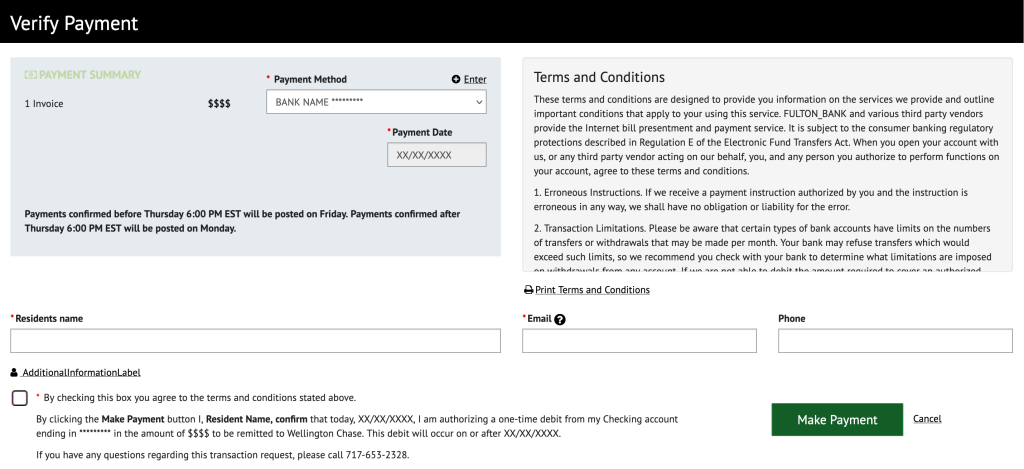
- Confirm that the details on the “Verify Payment” page are correct.
- Read the Terms and Conditions.
- Select the checkbox next to “By checking this box you agree to the terms and conditions stated above.”
- Click the “Make Payment” button.
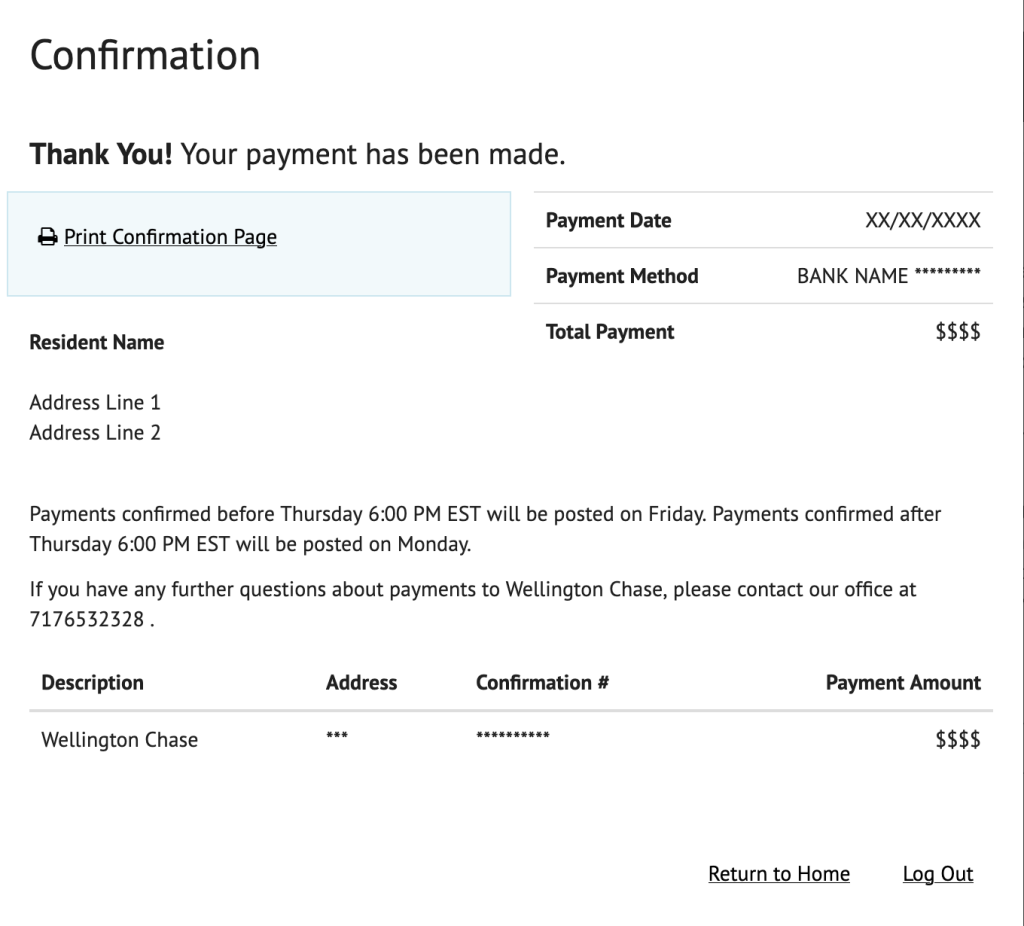
- You will be shown a “Confirmation” pop-up. We recommend you print or otherwise save your confirmation page in your records.