How to Use the Resident Portal

Payment Options

We accept ACH payments from:

  • Personal Checking
  • Personal Savings
  • Business Checking
  • Business Savings

Instructions

For residents looking to pay their rent online, please follow the instructions below.

  1. Click the Resident Portal button or follow this link.
  2. Enter your address, and re-enter it to confirm.
  3. Complete the CAPTCHA and click “Payment”.
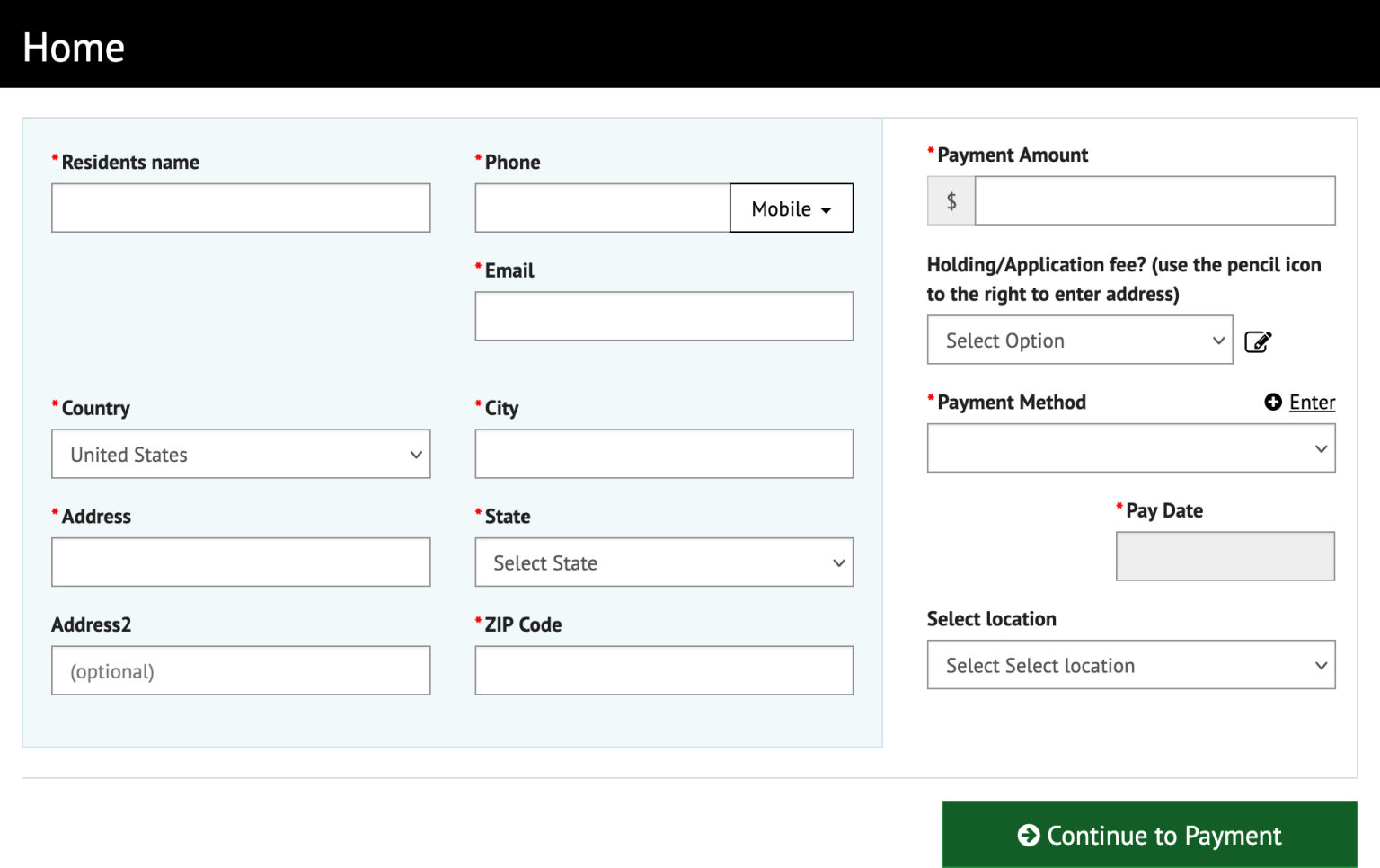
  1. Enter your name, phone number, email address, and home address in the first section.
  2. Enter your rent, security deposit, or application fee amount under “Payment Amount”.
  3. Click the “Enter” link to the right of “Payment Method” to bring up the “Enter Payment Method” pop-up.

If you are paying a security deposit or application fee,
select "Yes" under this dropdown and enter the address.

Click "Enter" to add bank details, not the dropdown.

This field is required.

  1. Select your Account Type and Banking Type.
  2. Enter your name, your routing number, account number, and confirm your account number.
  3. Select “Agree and Enter Account”.
  4. Click the “Enter Account” button to return to the previous screen.
  1. Select your address location from the dropdown.
  2. Click “Continue to Payment”.
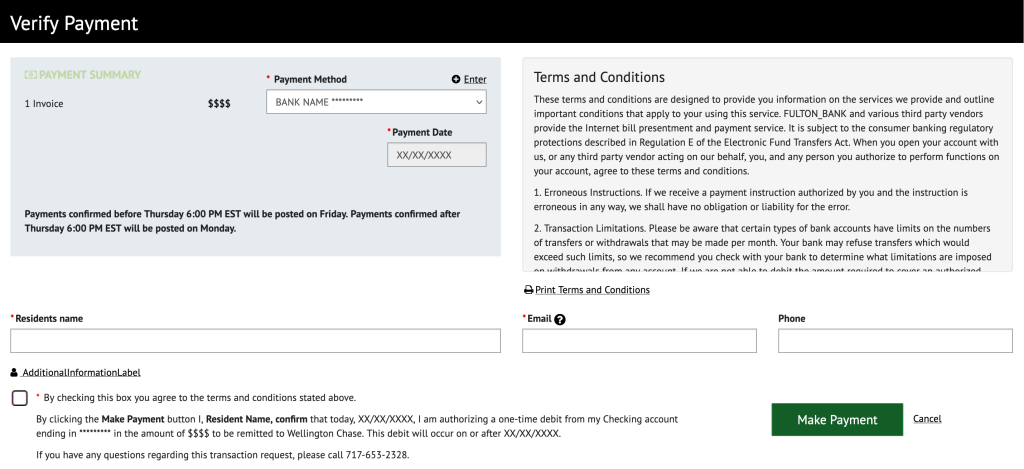
  3. Confirm that the details on the “Verify Payment” page are correct.
  4. Read the Terms and Conditions.
  5. Select the checkbox next to “By checking this box you agree to the terms and conditions stated above.”
  6. Click the “Make Payment” button.
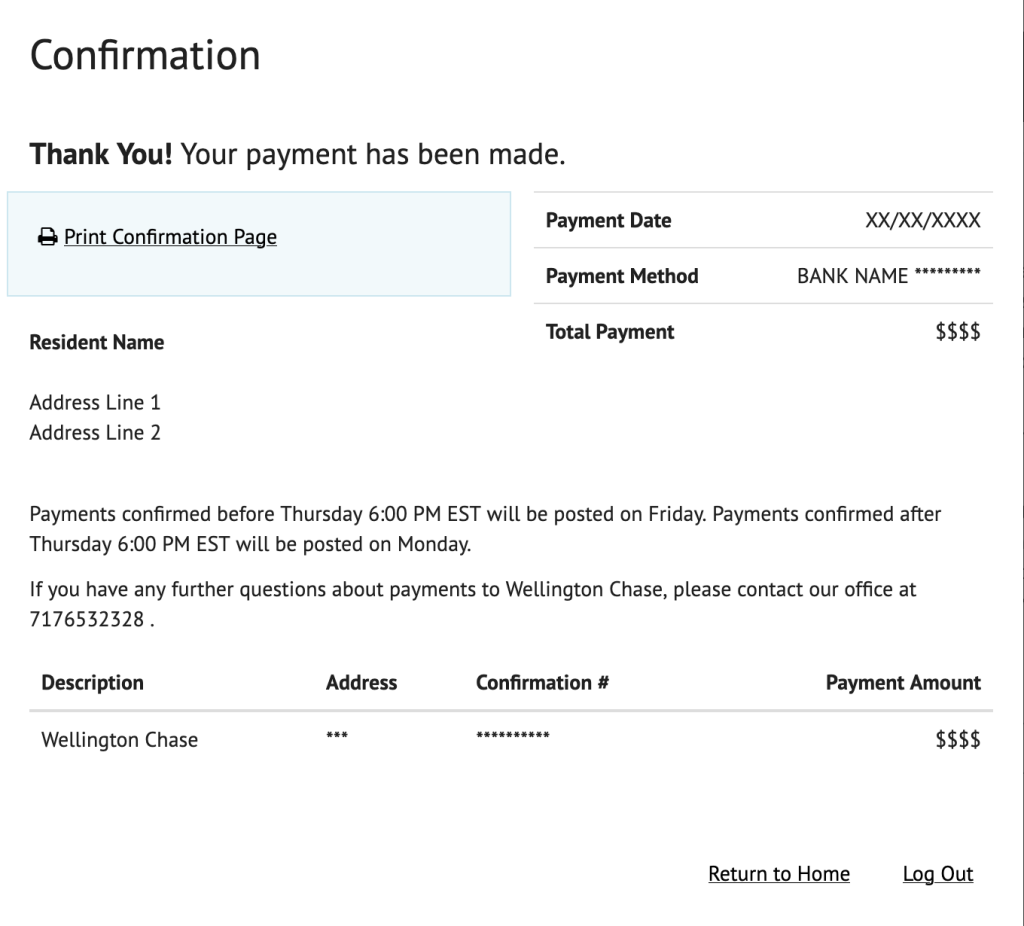
  1. You will be shown a “Confirmation” pop-up. We recommend you print or otherwise save your confirmation page in your records.